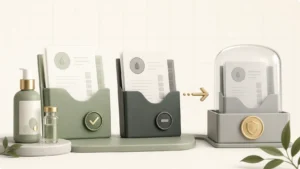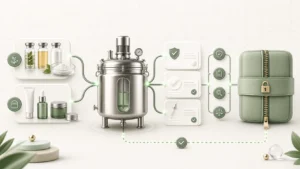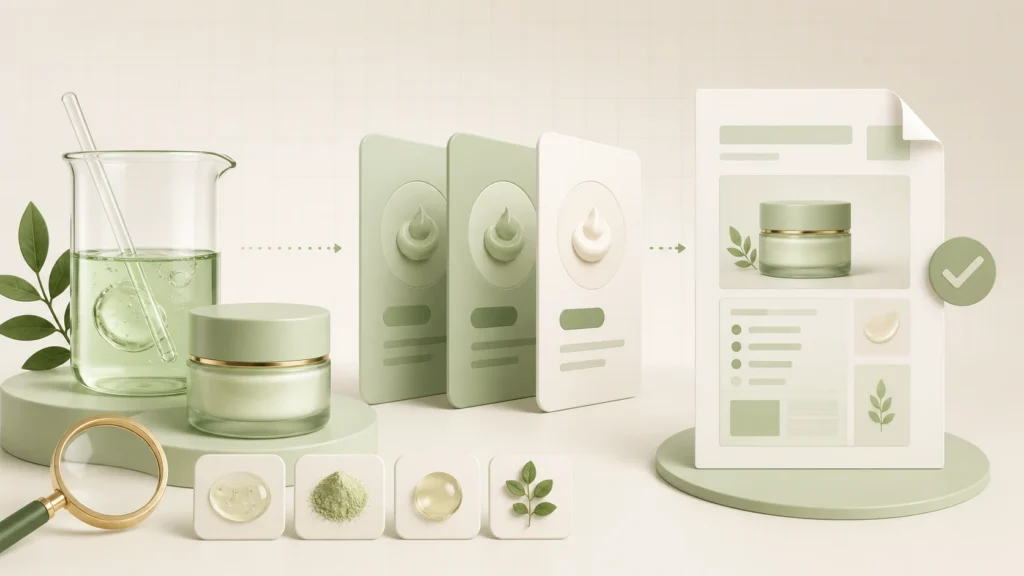
Use Formula and Product Versions when you need a reproducible snapshot without giving up the flexibility of an editable working record. Once Product Version 1 exists, PIF Assistant can generate an editable DOCX draft linked to the exact data and template versions used.
Before you start
- Save the Formula and check its INCI, percentages, phases and procedure.
- Add the packaging records you intend to associate with the commercial Product.
- Prepare any ingredient safety inputs you already have. Missing data does not block a Draft, but it must be reviewed before approval.
- Have a DOCX template ready, or download the example template from the workspace template library.
Step 1: Save a Formula Version
Open the Formula and save the working copy first. Go to Formula versions, add a short optional version note and select Save new version. The saved version is an immutable snapshot; continuing to edit the working Formula does not alter it.
If you later restore an older Formula Version, Formulator Online restores it as a working copy. Your existing versions and Changelog history remain available.
Step 2: Create a Product from the controlled formula
From the saved Formula Version, choose Create product from this version. You can also start from Products & PIF → Create product and select an existing Formula Version manually.
- Enter the commercial name and Article / SKU number.
- Select the product category, type and target market.
- Add intended use, application information, target population and claims.
- Enter the Responsible Person and address.
- Select the controlled Formula Version.
- Add packaging and confirm the product’s nominal content.
Packaging is optional while preparing a Draft. It is required before final approval because it becomes part of the immutable Product Version snapshot.
Step 3: Create Product Version 1
Save the Product, open Product versions, enter an optional version note and select Create Product Version 1. PIF Assistant stays disabled until this first version exists.
If the working Product changes later, the interface shows that saved changes are not included in the current version. Create a new Product Version when the change should become part of controlled documentation. Do not overwrite an older version merely because packaging, claims or the formula changed.
Step 4: Review product information and ingredient evaluations
Open PIF Assistant. Product information is reused from the Product where possible. Continue to Ingredient evaluations and review each INCI entry.
- Select a reusable evaluation if the same reviewed substance record already exists in your workspace.
- Create a new evaluation only from data you can support.
- Review NOAEL, dermal absorption and exposure assumptions before relying on SED or MoS arithmetic.
- Use Apply reference data only to fill empty fields from a match; confirm every value before saving.
- Open the missing-items counter to see what still needs manual input.
CosIng and IFRA matches show their source, match reason and confidence. A partial or ambiguous name match requires review. Reference information never creates an automatic safety conclusion.
Step 5: Select a DOCX template
Open the workspace DOCX templates library to upload, download, replace, duplicate, archive or set a template as default. Templates are shared across the workspace. Use supported placeholders and validate the generated document after every template change.
Step 6: Generate and review the Draft
Return to PIF Assistant, choose the template and select Generate editable draft. You can generate a Draft with gaps; the history records how many fields were missing. Download the DOCX, review it and complete any unsupported or manual sections.
If the Product data, Formula Version, evaluations and template have not changed, generating again does not create a duplicate. The interface reports that the latest Draft already matches the selected data and template. When inputs change, a new generated version preserves the earlier Draft instead of rewriting it.
Step 7: Move through review deliberately
Use the document statuses Draft, In review and Approved to reflect your human workflow. Final Product Version approval requires an approved PIF document linked to that Product Version. Approval is an explicit team decision, not the result of an automated check.
Next: manage controlled supporting documents, then prepare the Batch compliance package.