Lesson 5/18 — The Formula defines composition. The Product adds commercial identity, declared amount and packaging. A Product Version freezes those choices and unlocks the Product-level PIF workflow.
Before you start
Formula Version 1 from lesson 4. Professional or above for batch packaging; Premium or Enterprise for tracked packaging stock and file uploads.
Create the packing unit and its delivery
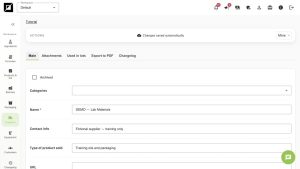
- Open Packaging → Add packaging. Enter DEMO — Bottle with cap, 50 g fill. In our exercise the bottle and closure are purchased as one set, priced at $0.80 per piece.
- Record actual material, role and container capacity when known. A fill mass of 50 g does not define a 50 ml container; the example deliberately does not invent a volume.
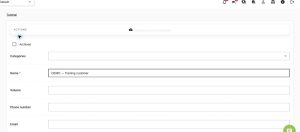
- Open Packaging lots and add PACK-260901 for this item. Select the DEMO supplier, record 100 pieces purchased and in stock, and cost $0.80 per piece.
- In real packaging assemblies, create separate records for a bottle, closure, label or carton when they are purchased and tracked separately. Do not count the same closure both in a set and as a second item.
Create the sellable Product
- Return to Formula versions and select Create product from this version.
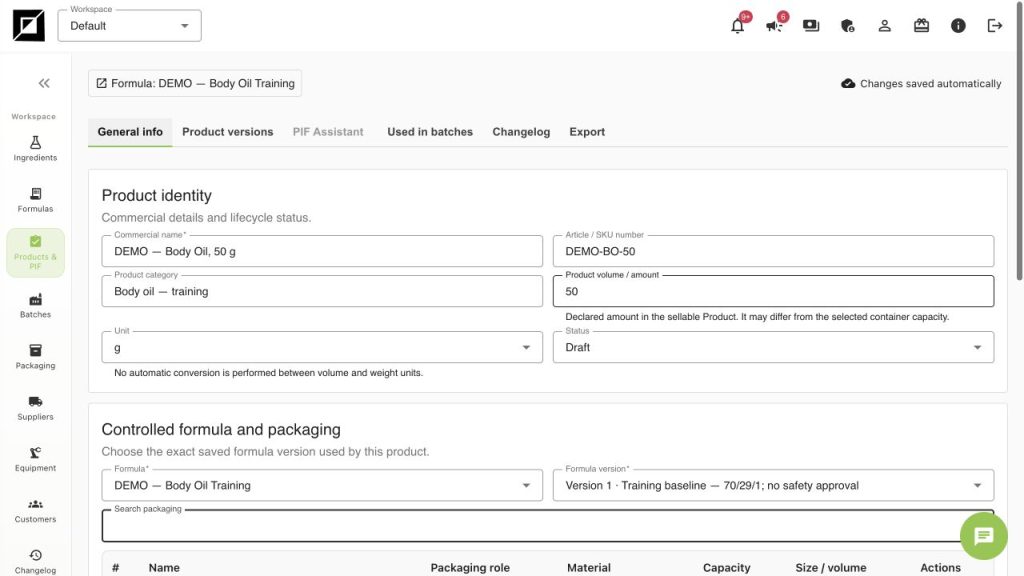
- Enter Commercial name = DEMO — Body Oil, 50 g and Article / SKU number = DEMO-BO-50.
- Set Product volume / amount = 50 and Unit = g. This is the declared product amount, which may differ from the physical container capacity. The screen does not automatically convert mass and volume.
- Confirm the selected Formula and Formula Version 1. Use Search packaging to add the saved bottle-and-cap set.
- Enter intended use, application area, target market, product type and claims from real evidence. For the DEMO use a training statement and no assessed commercial claims. Leave Responsible Person and address missing rather than inventing a legal identity.
- Wait for the saved Product URL and Changes saved automatically. Supporting documents belong in PIF supporting documents when available.
Save Product Version 1
- Open Product versions. Add the note “Training product: 50 g, bottle and cap, formula V1”.
- Select Create Product Version 1. Verify Product Version 1 · Up to date. The saved snapshot includes the selected formula version and packaging.
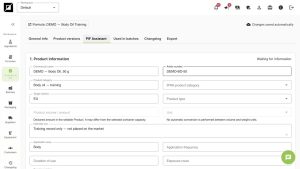
- The PIF Assistant button was disabled before this step and is now available. Creating a Product working copy alone is not enough.
- Do not select Approve version just to remove a warning. Approval is a separate review decision. Our training Product Version remains unapproved.
- If the formula version, declared amount or packaging changes, create a new Product Version and select the appropriate version for future batches and PIF work.
Checkpoint
You now have two different identifiers: Formula Version 1 for composition and Product Version 1 for the packaged product. In the Batch, select the Product Version deliberately; selecting a current working Product does not justify silently changing an older production reference.
Worked examples in the application
Click any screenshot to read it at full size. All DEMO records are fictional local examples.
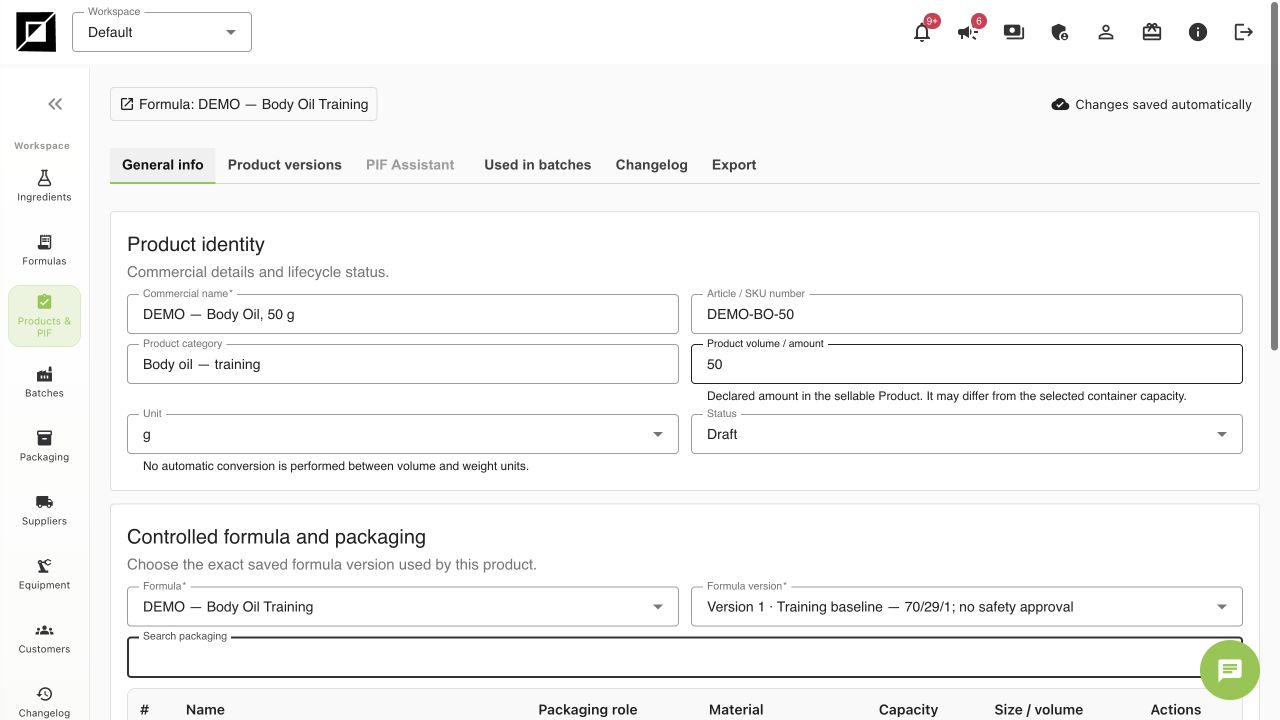
Expected result
The DEMO Product has SKU DEMO-BO-50, a declared amount of 50 g, one packing set and saved Product Version 1. PIF Assistant is available.