Lesson 11/18 — Use the intended product category and the real composition of each fragrance material.
Before you start
Supplier fragrance/allergen composition and intended use.
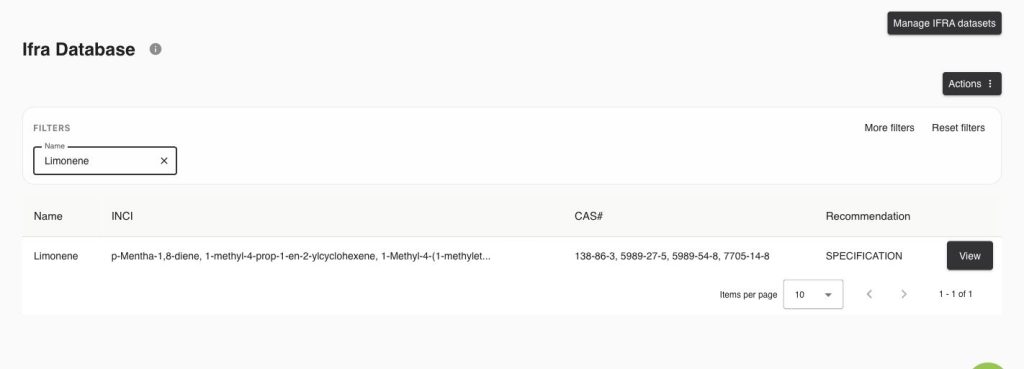
Search IFRA
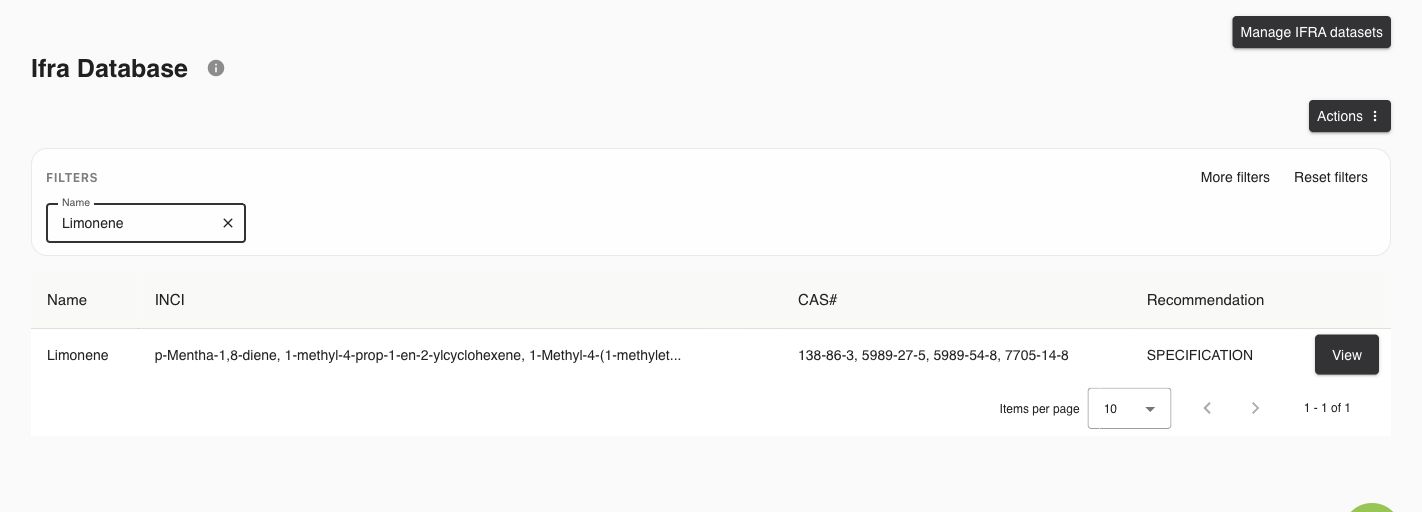
- Open Databases → IFRA. Enter at least three letters in Name; use More filters for the available identifiers. Select View and read Recommendation, specification and category-specific limits.
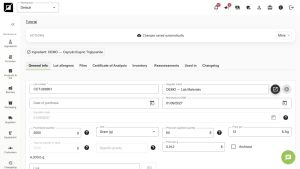
- In the Ingredient, record its declared fragrance constituents and percentages. For mixtures, do not enter 100% for every component. Add a lot-specific allergen profile when the supplier lot differs.
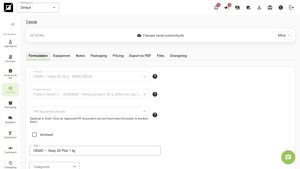
- Open Formula → Compliance and review IFRA/EU 82 results. Set the intended IFRA product category in the product/PIF information and verify that limits are available for that category.
Read the calculation
Teaching arithmetic: fragrance at 10% containing Limonene at 4% contributes 0.4% Limonene to the finished formula. Review totals from all relevant materials. EU 82 distinguishes detected, above threshold, unknown and not assessable results; an empty profile is not zero allergens.
Keep evidence
Attach the supplier’s current IFRA/allergen documents and save a controlled Formula Version. Use Re-check with current IFRA to compare against current data without rewriting the recorded result. An IFRA conformity certificate does not replace the safety assessment. IFRA Standards and guidance.
Worked examples in the application
Click any screenshot to read it at full size. All DEMO records are fictional local examples.
Expected result
The category, concentrations, missing data and supplier evidence are explicit.